Harry Bailey is a technology and delivery leader who specialises in turning agency project chaos into clarity. With more than twenty years of experience as a developer, agency founder and fractional CTO, he helps digital and creative agencies build stronger engineering and delivery cultures and improve commercial outcomes. He focuses on practical, immediately actionable strategies, not theory, so teams can ship work on time and with less drama.
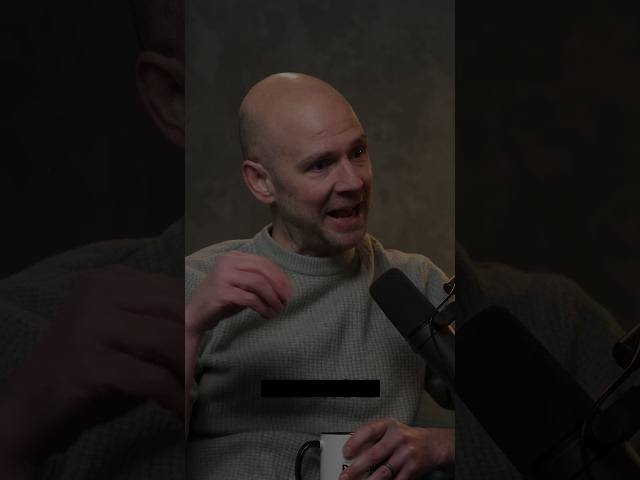
Here’s a soundbite from an upcoming Everyday Agile podcast episode I recorded with Jac Hughes recently.
In this short clip take from a longer discussion focusing on AgencyLand Agile, I talk about building a project team, and why it’s key to include all the stakeholders in that effort.
Align around the client, the organisation, their challenges and their needs.

“Let’s just get started. We’ll work it out as we go. Who needs a plan anyway? We’re Agile!”
We knew some stuff. We certainly had enough excitement. The roadmap would become clearer as we did the work and made progress.
Or at least that was what we assumed. But 20 years ago I was still learning my trade.
And sure enough, not far into the project things got sticky. We’d made decisions without the client. Some which would be tough to undo. But undo them we must. Time and money had been wasted.
The key learning at the time was to know as much as possible before starting. Workshopping, user research, data analysis, paper prototyping. With the client stakeholders.
Often discussions we’d be having as we went anyway, just frontloaded to ensure we all headed in the right direction as a single group.
We found that starting things well had a compound effect on the remainder of the project. A poor start was impossible to compensate for later. Aligning, understanding and agreeing could (and should) all happen before work began.
Then, the majority of projects could be focused on doing, and smaller discoveries and changes to maximise the value being created.
And that’s now a key part of the approach I take with teams. We focus on starting projects well. Aligning around the needs, and a plan, and only then getting started.
If estimating things is so hard, why don’t agencies just stop doing it?
The majority of agency leaders I know don’t like estimates much. Never accurate enough to be trusted, and usually too optimistic. If delivery teams could just be better at creating them, there would be more certainty around timelines.
Delivery teams don’t like estimates either. They take a lot of time to create, and although called ‘estimates’ they often lead to expectations about delivery dates.
There is a lot of focus put on the sales process at agencies. Sell more things to more clients. Sign contracts quickly and fill in all the details later. Keep the sales function separate from the challenges of project delivery.
It can be tempting to rush through the early stages of a client relationship. Promising the world to build trust and worrying about how to deliver on those promises later.
Saying no to that project that won’t be able to start for at least 3 months is hard. Surely there’s a way to make it fit earlier?
You know you can sell things You can certainly schedule them in You’ll plan what needs doing, and by who You can track progress to the minute You can even be prepared to support what you create
I’ve decided to rewrite the previous version of this article. It’s been cloned and copied loads of times, and to be honest it got bloated. I also prefer this new way.
This guide aims to only take you through the steps I use now when a PHP version update is needed for my AWS Lightsail Bitnami WordPress install.
No fluff. Limited details. Just 7 steps and 3 optional ones.
You follow this guide at your own risk. Back up your site first. The older version of this article is still valid if there isn’t enough information for your needs here.
The main change here is we’re going to use a very simple maintenance plugin which shows a message in the short time required between moving to the new install and importing the old blog backup. This does away with the potential complexity of the Lightsail IP address being saved to the database as part of the migration.
This guide assumes you have a static IP on your current Lightsail instance. If you don’t, this guide isn’t for you.
1. Create a new AWS Lightsail instance
Match the instance type of the current setup unless you know otherwise. Choose a name you’ll remember for the following steps. For this guide, we’ll use New Instance, and Old Instance for our instance names.
2. Tweak the New Install’s PHP settings
Choose to ‘connect using SSH’ to New Instance.
Run cat bitnami_application_password and take a note of the password for later
Run sudo nano /opt/bitnami/php/etc/php.ini
Use ctrl-w to trigger a search, or look manually for the partial max_size and change the value from 80MB to whatever you need. It’s temporary, go wild.
Use ctrl-w to trigger a search, or look manually for the partial max_file and change the value from 80MB to whatever you need. It’s temporary, go wild.
Run sudo /opt/bitnami/ctlscript.sh restart to restart Apache and apply the new upload limit settings
Keep this window open for use in step 6.
3. Get migrate and maintenance ready
Open the New Instance’s wp-admin. If you don’t know how via the IP address, there’s a button at the top of the page in LightSail admin which says ‘Access WordPress Admin’. Log in using the username user and the password that you made a note of in the step 2.
Go to plugins in the navigation
Click enable next to WP migrate (it’s installed by default). If you don’t see it, click ‘Add New’ – search for ‘Migrate’ and install and enable ‘All-in-One WP Migration`
Click the ‘Add New’ button and search for ‘Maintenance’ – Install and enable ‘WP maintenance’
Click ‘WP maintenance’ in the left nav. Change the body text to ‘We’ll be back in a few minutes’, because the default message isn’t ideal. Save.
Enable maintenance mode, and save again. New install now in maintenance mode, although you can still see it because you’re logged in as admin.
4. Export the live site
I do this at step 4 to limit the time between export and import, but if you’re not as bothered, you could save overall time by starting this step first, and doing other steps while the export is taking place.
Open the live site’s wp-admin. Go to plugins. Enable ‘All-in-One WP Migration’, or if required, click ‘Add New’ as above, install and enable it.
Click ‘All-in-One WP Migration’ in the left nav. Click ‘Export to’. Select ‘File’.
When the process has finished, click the download button to do the actual file downloading to your machine.
From step 5 you’ll want to move fast if limiting downtime (length of maintenance message display) is important to you. It took me about 5 minutes from this point for a 350MB WordPress site.
5. Move the live domain to the new site
In Lightsail admin navigation click Networking, then click the name of the static IP associated with the currently live site.
On the manage screen for IP, click to detach it from Old Instance. Then immediately reattach it to the New Instance.
6. Add an SSL Certificate to New Instance
Still got the New Instance SSH window open? Switch to it, or open it again.
Run sudo /opt/bitnami/bncert-tool
Submit your domain name without www. Choose your preferred answers to the questions that follow. Stick in an email address. Agree to the right things with Y / n. Complete the process.
Reload, or open your live domain name in a browser. Keep refreshing, and pretty quickly it should go from not loading, to loading again.
7. Import to New Instance
Open up your live domain wp-admin. Log in using your settings above. So user and password you made a note of.
Open All-in-One WP Migration and choose import. Choose File. Choose the file from your computer.
Wait. It should succeed. Only file size might stop it working, but fingers crossed. It will probably ask if you’re sure.
There you go. The site, file and database are moved to New Instance.
8. Put the settings back
Go back up to step 2 above and reverse the changes to php.ini on New Instance – or don’t. It’s up to you.
Check Settings => General. If your domain name shows as http:// and the field is readonly, you need to edit wp-config.php so in the New Instance SSH window…
Run nano /opt/bitnami/wordpress/wp-config.php find WP_HOME and WP_SITEURL and update to https://
9. Remove Old Instance
You can now ‘Stop’ or even remove the old instance. I usually Stop mine and keep it a few days before removing just in case.
If you messed anything up above, the only change required to go back is step 5 in reverse. Point the static IP back to Old Instance. Insure it’s not Stopped first.
10. Helpful? Say thank you.
Help me keep these guides up to date by showing your apprechiates with a small donation. Scan the QR code below, or buy me a coffee here.