

I recently moved from Monosnap to Shottr for screenshots on my Mac. Shottr has a whole lot going for it, and it was the right move, but the biggest frustration was how to open images in Shottr quickly.
In Monosnap I almost always dragged the existing image from a browser, or Finder onto the menubar icon. Monosnap would show a little drop zone, you dropped your image file and Monosnap would review it in a new window. Shottr doesn’t yet allow dropping onto the menubar icon.
Also, shottr has a lot of shortcut key options, but none of them are ‘Load from Clipboard’. This is only available via the options list. So my clumbsy workflow was… right click and copy an image, click Shottr menubar icon, move down to ‘More’ then move down and click ‘Load from Clipboard’.
I decided there had to be a better way which allowed drag-and-drop, and after a little whle trying things out I found it.
Using the Shortcuts app in MacOS you can create a dock icon which receives the dropped image, copys it to the clipboard then triggers Shottr to open from clipboard.
It uses a combination of standard items, like copy to clipboard, open app, and trigger local app url scheme destinations.
Once you have the Shortcut built (or installed), click ‘File => Add to dock’ in the menu bar. If you make any changes to the app you might need to remove the existing app from the dock before using ‘Add to dock’ again.
You should now be able to drag any valid image to the new shortcut dock icon and after a second or two it will open in Shottr.
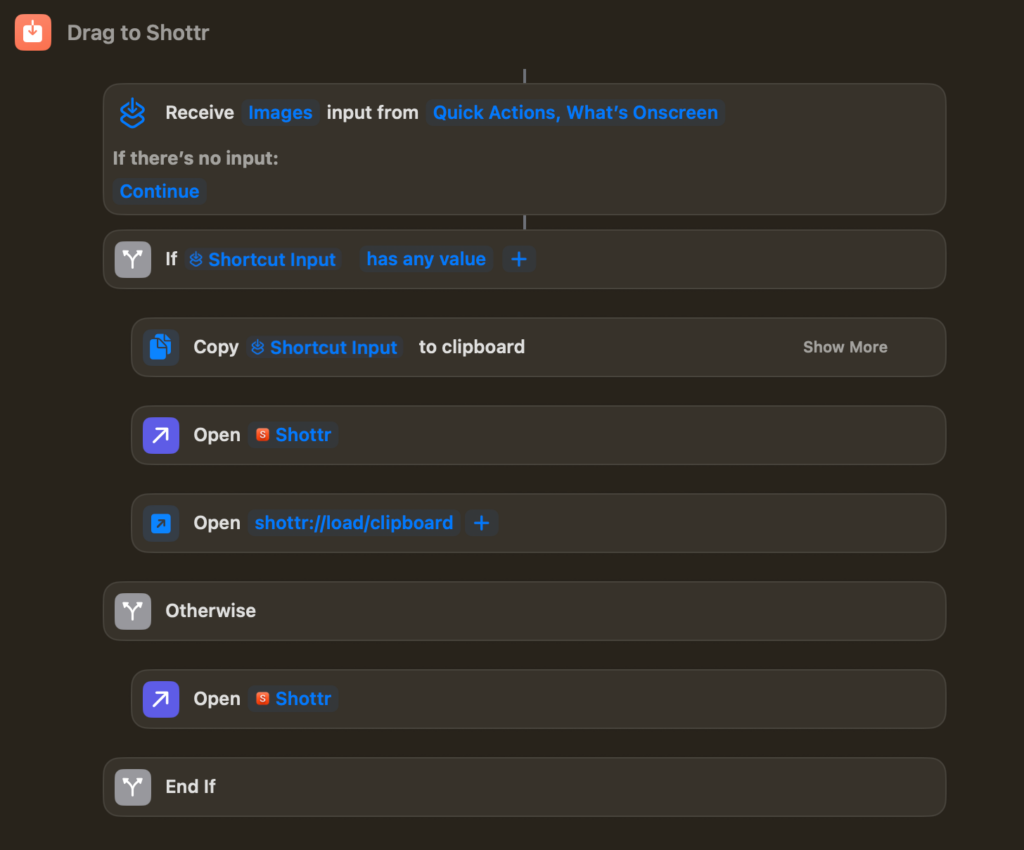
If you want to try this out for yourself, you can access a copy here:
https://www.icloud.com/shortcuts/60cb594b644d483097fd8e6d10321ddc
If you want to set it up from scratch, here are screengrabs of the Details and Privacy tabs. You might have to run inside Shortcuts with the play icon to give permissions before it functions correctly.
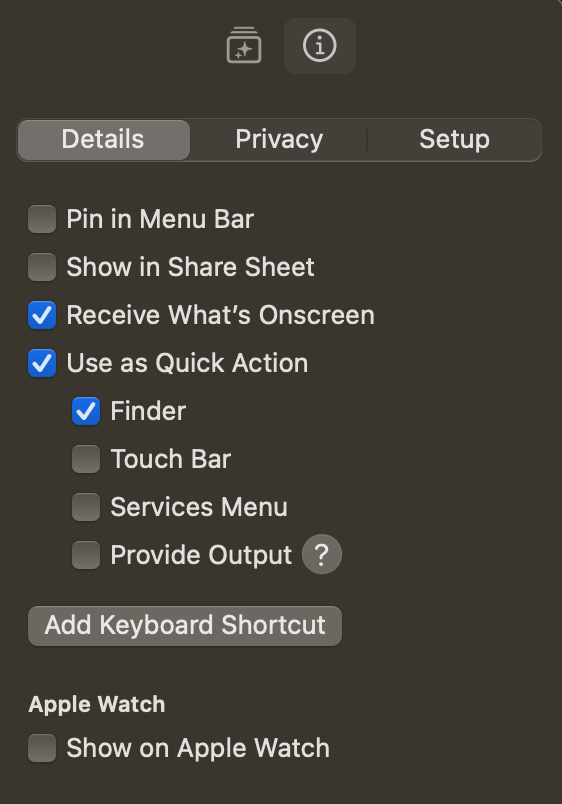
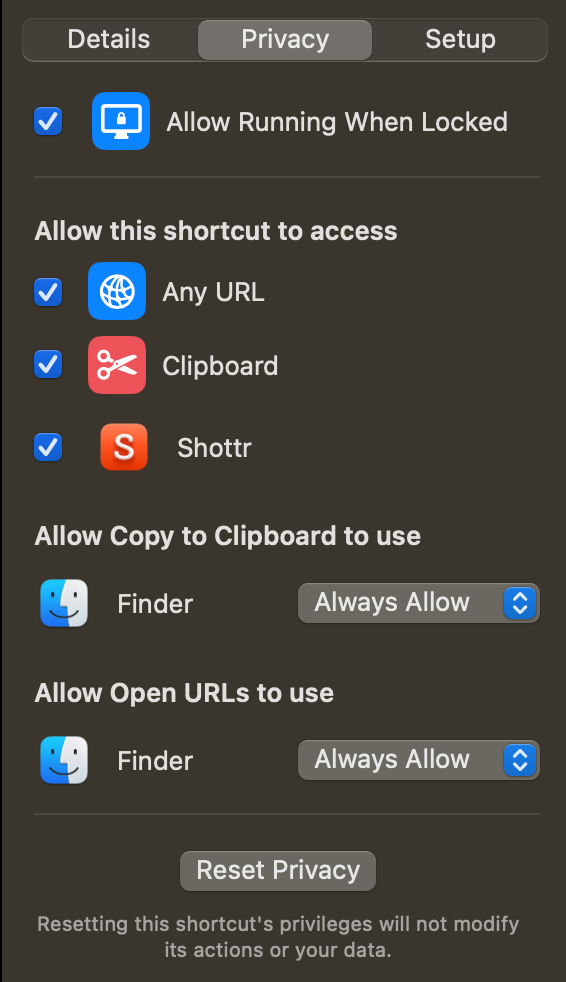
You can let me know if:
- ‘Allow running when locked’ can be unchecked
- ‘Receive what’s on screen’ can be unchecked
- You truly need to trigger open Shottr before triggering the open clipboard url
Helpful? Say thank you.
Help me keep these guides up to date by showing your apprechiates with a small donation. Scan the QR code below, or buy me a coffee here.
